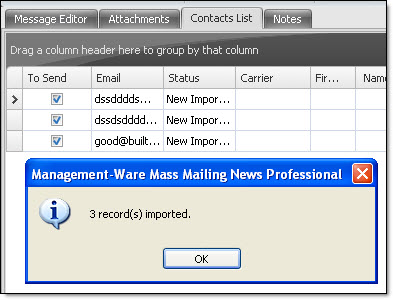
Import contacts from MS SQL Server 200X and Express |
  
|
Import contacts from MS SQL Server 200X and Express |
|
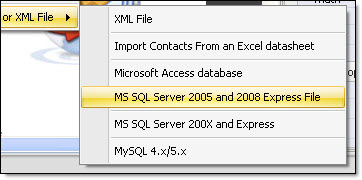
From the “File” menu select “Import contacts/Recipients”, then select “Import contacts from a database or Excel or XML file” then select “MS SQL Server 2005 and 2008 Express file”. The “Connect to a database” and “Management-Ware database import assistant” dialog boxs will be displayed at the same time.
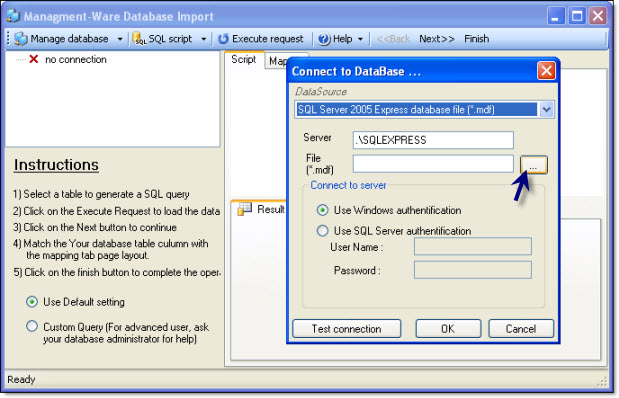
Click on the “Browse” button, then, select your MS SQL file and click on the “Open” button. Then, click on the “Ok” button located at the “Connect to a database” dialog box.
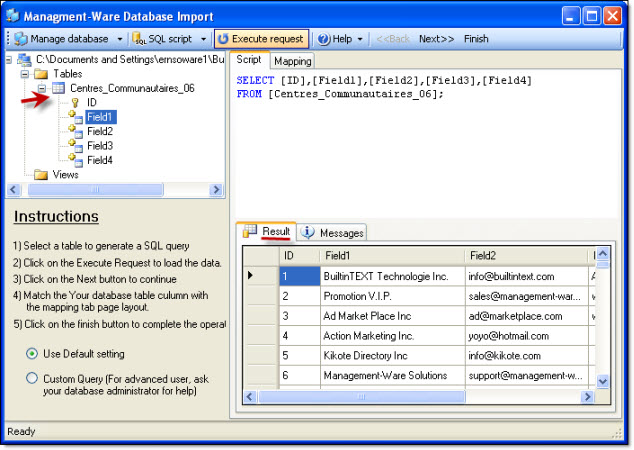
Select a table on the list, and then click on the “Execute request” button. After some seconds, your data will be displayed under the “Results” tab. Then, do the mapping.
Mapping: Organize your imported data with the Management Ware Mass Mailing News page setting tool. For example: you match “E-mail” with “Mail”, “Name” with “Name”, “Company” with “Enterprise”. The page setting is done according to the titles you have. You only have to match the names of the fields! If a field is empty, leave the default value: <Null>. After completing the setting of the page, click on the “Finish” button to import your list.

If your contacts aren’t assigned to a group and if you want to add them to a group then, you only have to check the box next to “If group field is empty, add the checked group to each contact”. At this import step, you can also add and edit the name of the groups.
Contacts import dialog box