Email No-Send List - list of blocked emails |
  
|
Email No-Send List - list of blocked emails |
|
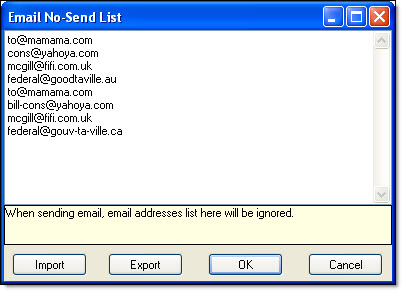
In Mass Mailing News, to block or to add a contact on your blacklist, you just need to click on “View”, and then on “No-Send List”. The “Email no-send list” dialog box will be displayed. Enter the email address and click on the “Ok” button to save the data. When you send messages, the emails registered in this list will be ignored.
You can import a list of blocked emails in Mass Mailing News:
Step 1: Click on the “Import” button. The “Import Contacts” dialog box will be displayed.
Step 2: Choose your text document and click on the “Open” button.
Step 3: The imported emails will be displayed in the “Blacklist” dialog box.
Step 4: Click on the “Ok” button to close the dialog box and to save the data.
You can also export a list:
Step 1: Click on the “Export” button. The “Save as” dialog box will be displayed.
Step 2: Give your list a name, choose your location (ex.: desktop, my documents, etc.) and click on the “Save” button.
Step 3: Click on the button “Ok” to close the dialog box and to save the data.
Note: The list is saved in the configuration software folder regardless of your mailing lists.