View contact lists in Mass Mailing News |
  
|
View contact lists in Mass Mailing News |
|
To view the list of your contacts in Mass Mailing News, click on “View”, and then on “Contacts list”, or click directly on the “Contacts List” tab from the taskbar. The “Contacts List” module will automatically be displayed.
In the bulk mass mailer program, to delete one or many contacts from your list, you need to select the contact or contacts in question, and then, from the “Contacts” menu, select “Delete Selected”. Confirm your choice and the deletion will automatically be done. Once you have confirmed deletion, you will not be able to retrieve the data. A shortcut can be used for this task, you just need to right click on your mouse and you will have the same options which are displayed in the “Contacts” menu.
You can select many contacts from your list. Keep your finger on the Control key (Ctrl) on your keyboard and select the contacts you want.
In Mass Mailing News, to select a group of contacts, select the first contact of the group and at the same time, keep your finger on the Shift key on your keyboard and select the last contact from this group.
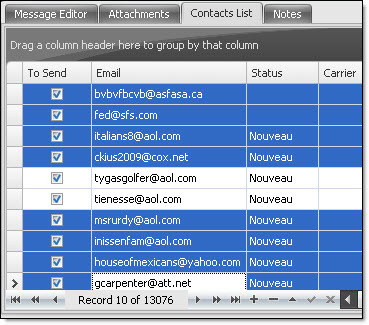
Once the contacts selected, you can delete, modify, check, uncheck, search and export those contacts.
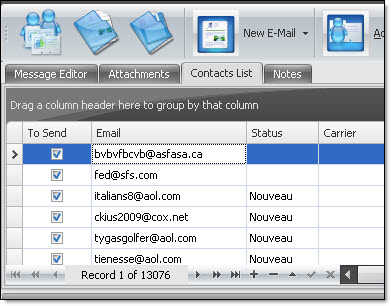
The image below shows a list of contacts and only one email selected in blue.
To modify a contact, all you need to do is double click on it. Modify as necessary and click on the “Ok” button to save changes.