Import a contact list from a formatted file |
  
|
Import a contact list from a formatted file |
|
Mass Mailing News allows you to import contacts from formatted files (e.g.: .csv file). See the instructions below to learn more about creating and editing .csv files.
The formatted file import steps are:
1. - Import a contact list from a formatted file
To import a contact list from a formatted file, you can start the process from the “File” or the “Contacts” menu.

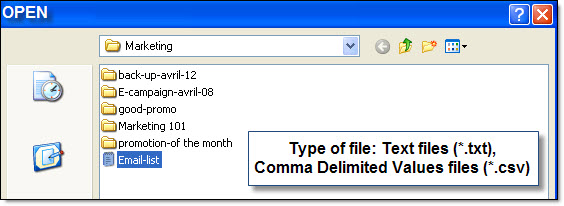
1.1. From the “File” menu, select “Import contacts/recipients” and select “Import a contact list from a formatted file". The “Open” dialog box will be displayed. Then, search and select your document and click on “Open”. You can select one or more files.
1.2. After clicking on “Open”, the “Formatted Text file import” dialog box will be displayed. You must choose your type of delimitation. Your type of delimitation is “Custom delimited”. Then you have to choose the text delimitation. The text delimitation can be a comma (,), a semicolon (;), a colon (:), or others. Insert the information concerning the text delimitation in the appropriate field. After setting the delimitations click on the “3) Import TEXT data” button.
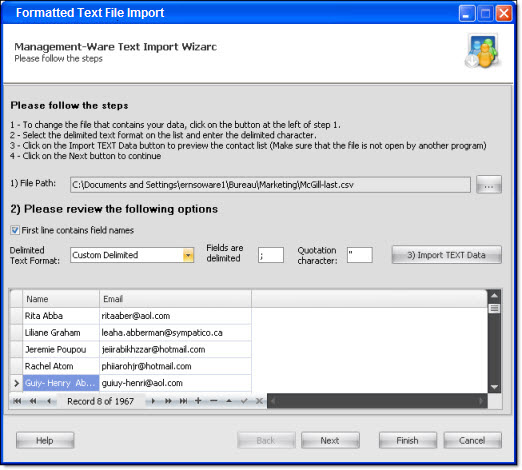
Through this dialog box, you can modify one or more contacts. To modify a contact, select it and click in the field that you wish to modify, then, make the modification.
Note: If you try to import after choosing your delimitation (for example, the comma (,) and if you see that the program doesn’t import or import all the data of each contact on a single field then try other delimitation (for example, the semicolon (;) and click again on the “3) Import the data” button. Be sure that your document is well formatted. If your document is not correctly formatted then you can have problems that can disable the import.
1.3. View the information that appears in this dialog box. At this point of the “Import a contact list from a formatted file", the first row should contain the name of the fields (ex.: last name, first name, title (prefix), company, e-mail address, etc.) that you have chosen and that appear in your contact list. Click on the “Next” button in order to continue the process.
If for any reason, you are not satisfied with the results, click on the “Cancel” button and make the necessary corrections in your document, text or CSV. After making the corrections, please restart the “Import a contact list from a formatted file" process.
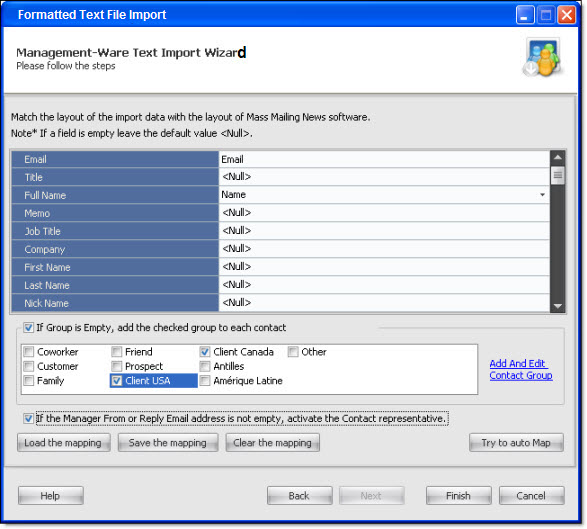
1.4 Organize your imported data with the page setting tool of Management Ware Mass Mailing News. For example: you match “E-mail” with “eMail”, “Name” with “Name”, “Company” with “Enterprise”. The page setting is done according to the titles you have. You only have to match the names of the fields! If a field is empty, leave the default value: <Null>. After completing the setting of the page, click on the “Finish” button to import your list.
If your contacts aren’t assigned to a group and if you want to add them to a group then, you only have to check the box next to “If group is empty, add the checked group to each contact”. At this import step, you can also add and edit the name of the groups.
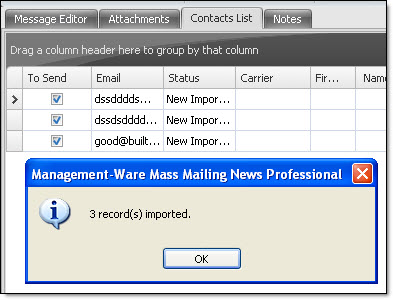
1.5 At this point, you only have to click on the “Ok” button! The program Mass Mailing News will notify you about the total number of imported contacts and the total number of duplicated e-mails addressed.
-------------------------------------------------------------------------------------------------------------------------------------------------------
Creating or editing CSV files
Use CSV files to import and export contacts. Spreadsheet programs like Google Spreadsheets and Microsoft Excel make it easy to create and edit CSV files.
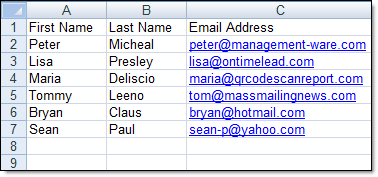
Your CSV file should be formatted as a table and must include a header, or first line, that defines the fields in your table. Mass Mailing News accepts many common header fields (name, email address, etc.). If you're updating an existing file, you probably won't need to change your header field names.
Once you've entered all of your contacts into a table, save the document and select CSV (Comma delimited) (*.csv) as the type of file you'd like to save. If prompted to verify your selection, click Yes or OK.
For more information about CSV files, open Help in Excel.