Import contacts from Outlook |
  
|
Import contacts from Outlook |
|
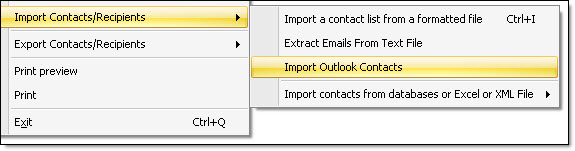
From the “File” menu, select “Import contacts/Recipients”, then select “Import Outlook contacts”. The “Import Outlook contacts wizard” dialog box will be displayed.
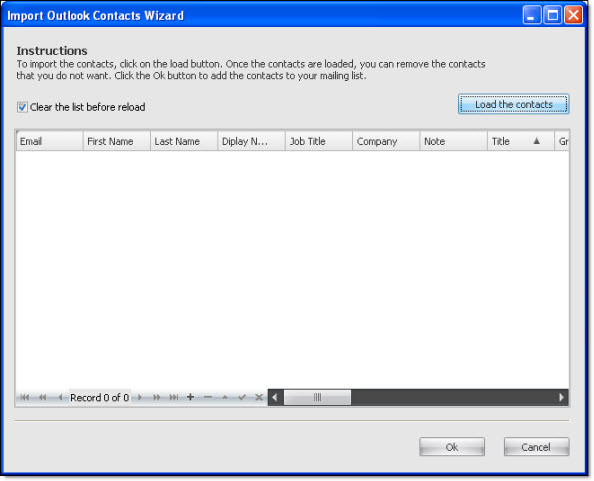
Outlook must be your e-mail program by default. When you try to import, if Outlook isn’t your e-mail program by default, you will receive a message asking you to configure Outlook as your e-mail program by default. Then, you will have to restart the Mass Mailing News program so you can import the contacts from Outlook.
After finishing the import process of your contacts, you can delete the e-mails addresses that you don’t want in your list. Finally, click on the “Ok” button to add these contacts in your mailing list. It’s simple and quick!
Note*: It isn’t necessary for Outlook to be open during the contact importing process. If it is your e-mail program by default is enough.
Note**: If for any reason the program can not automatically import your contacts, follow these instructions.
You can export your Outlook Contacts as a Comma Separated Values (.csv) file and then import your contacts into Mass Mailing News.
Export Outlook Contacts
1.In Outlook, on the File menu, click Import and Export.
2.Click Export to a file, and then click Next.
3.Click Comma Separated Values (dialog boxs), and then click Next.
4.In the folder list, click the Contacts folder, and then click Next.
5.Browse to the folder where you want to save the contacts as a .csv file.
6.Type a name for the exported file, and then click OK.
7.Click Next.
8.Click Finish.
9. Import contacts into Mass Mailing News (see the section... "import a contact list from a formatted file")
You can always use Google to learn how to export Outlook contacts or open Help in Microsoft Outlook.