Main screen of our Mass mailing software |
  
|
Main screen of our Mass mailing software |
|
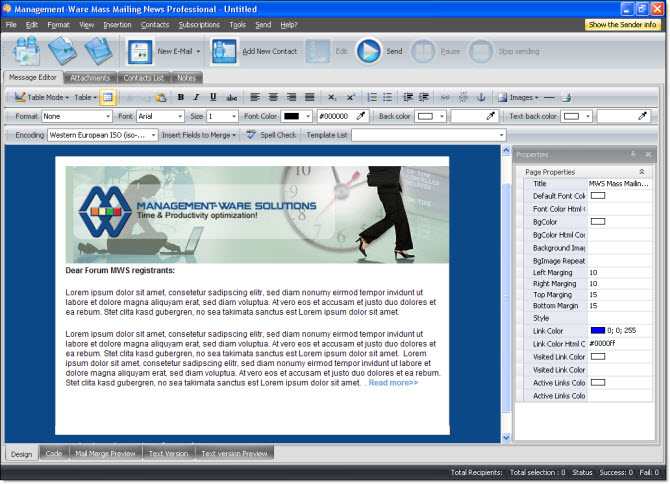
This window of our mass mailing software allows you to access the files, formats, views, insertions, contacts, groups, subscriptions, tools, e-mail sending and help.
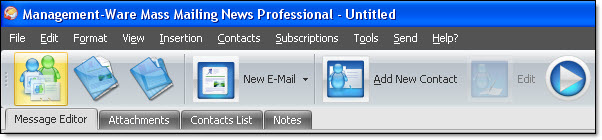
From the main screen of our mass mailing program you can access the creation of new mailing lists, new messages, attached files, contact lists, notes, printing and many other features.
From the menu located on the right, you can access the page properties, including image properties, links and other elements of the message.
From the bottom of the main window, at the left, you can access the message design and coding modes, the HTML and text preview of the message. On the right corner, you can see the total number of contacts, the total number of selected contacts, the status, the total number of e-mails that have been successfully sent and the total number of e-mails that couldn’t be sent.

If you want to track your promotional campaigns online and get detailed results, we strongly recommend you to subscribe to the tracking service offered by Management-Ware Solutions.
In the “Default sender’s information” tab, you can find the following fields: “Sender email, “Sender’s name”, “Subject”, “Reply to”, “CC”, “BCC”, “Priority”, “e-mail ID”, “Enable e-mail tracking service”, and “Auto add tracking code to non tracking links”.
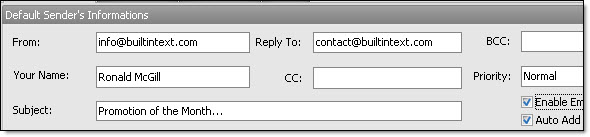
If you check the box next to “Enable e-mail tracking service” you must previously have an online account for this service. Without the online account, you will not be able to do the promo campaign tracking through the Management-Ware Solutions system.
When you have checked the box, the program automatically adds a tracking code to the message. And when you’ve checked the box next to “Automatically add tracking code to non tracking links”, the program automatically adds a tracking code on each hyperlink that doesn’t have a tracking code in the message.
The field “e-mail ID” - For a better message administration, we recommend you to add an “ID” (identification number). When you are subscribed to the online tracking service, this ID will be used to track the messages you have sent.
When the Edit menu item “Use the contact lists manager” is selected, every time that you open the program, the “Email contact list manager” will be displayed. If you don’t want the “Email contact list manager” window to be displayed, then we recommend you to uncheck the selection through the Edit menu.
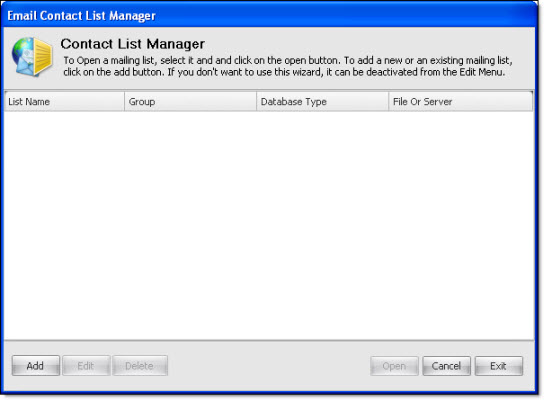
The list manager will allow you to rapidly choose and open an existing list. You can also add new contact lists. The manager displays the “List name”, the “Group” and the “Database type”, for example: SQL Server or ecl. The files that have the “ecl” extension are documents created by Mass Mailing News.
To open an existing list, you only have to select a list and click on the “Open” button. The program will automatically open the list.
If you want to add a contact list to the manager, you only have to click on the “Add” button. After clicking on “Add”, the “Add and Edit contact list” window will be displayed.
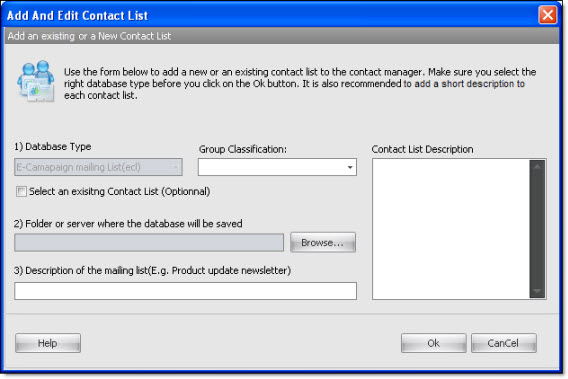
Before adding a new list or an existing list, you must accept the program conditions and follow the given instructions.
Choose the database type. Currently, the program suggests the following options: “E-campaign mailing list (ecl)” and “Microsoft SQL 2000 and beyond”.
If you choose “E-Campaign mailing list (ecl)” as a database type, in the next step, you have to choose your folder or server where the database is going to be saved. To perform this task, click on the “Browse….” button.
In the third step, enter a brief description
In the “Group classification” and “Contact lists description” fields, also enter a short description.
Finally, click on the “Ok” button to add the contact list to the manager
To close the “Email contact lists manager window”, you only have to click on “Cancel”. If you don’t want the “Email contact list manager” window to be displayed, we recommend you to uncheck the selection through the “Edit” menu.
When the “Email contact list manager” is displayed, if you click on “Close”, the program will be totally closed. If you have ongoing tasks, please save them before closing. If you close the program before saving, you will not be able to retrieve the data.
If you choose “Microsoft SQL 2000 and beyond” as a database type in the second step, click on the “Connection” button to select or add a new contact list. After clicking on the “Connection” button, the window “Select a new database” will be displayed. Then, follow the instructions for the connection to the SQL server database.
In the third step, enter a brief description
In the “Group classification” and “Contact list description” fields also enter a short description.
Finally, click on the “Ok” button to add a contact list to the manager.
To close the “Email contact list manager” window, you only have to click on “Cancel”. If you don’t want the “Email contact list manager” window to be displayed, we recommend unchecking the selection through the “Edit” menu.
When the “Email contact list manager” is displayed, if you click on “Close”, the program will be totally closed. If you have ongoing tasks, please save them before closing. If you close the program before saving you will not be able to retrieve the data.
Download and test our free bulk email software and newsletter software today!