Create New E-mail in Mass Mailing News |
  
|
Create New E-mail in Mass Mailing News |
|
With Mass Mailing News you can create effective, professional email newsletters. No special technical or design skills required to use this software. Create your own layout from scratch or use an HTML Email template.
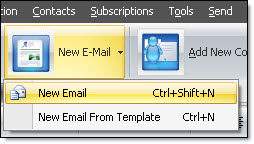
To create a new e-mail message, on the taskbar, click on the “New E-Mail” icon and select “New Email”. If you were writing a campaign, the program will ask you to save, ignore or cancel the changes. Make your selections! The message editor will be emptied and your contact list will stay intact. You will be able to create a new campaign for this contact list.
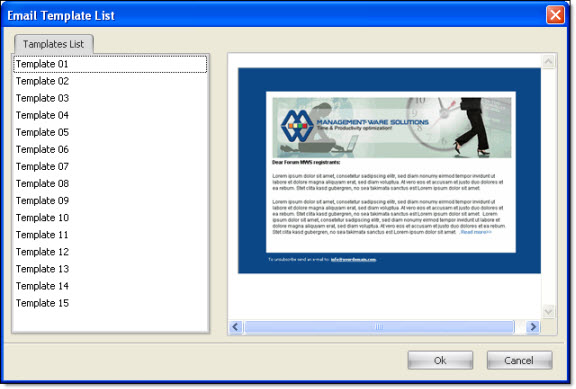
From the taskbar, click on the “New Message” button and select “New message from template”. The “Email template list" dialog box will be displayed. To see the templates, click on each template (e.g.: Template 01). After seeing the templates, make a choice and click on the “Ok” button.
"Email template list" dialog box:
Now, you only have to modify the template. Create or copy-paste your text in the right places in the template. You have also the possibility to add images. To add images, place your cursor at the place where you want to add the image and click on the “Hyperlink” icon located in the tool bar of the “Message editor” tab, in design mode, and follow the steps. You can also insert an image from the “Insertion” menu.
In respect of the text that you are going to copy-paste in the Mass Mailing News editor, it is recommended that it comes from a text file. Texts that come from Microsoft Word contain tags that can deform the font or the text characters.
To close the “Email template list” dialog box and/or cancel a task, you only have to click on the “Cancel” button.
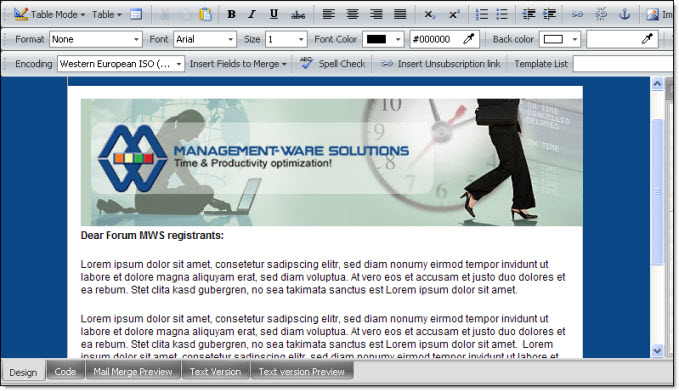
Note: To preview the message, click on the “Message editor” tab. Then, click on the “Mail Merge preview” button. This button is located at the bottom of the screen on the left.