Fast solution for unsubscriptions |
  
|
Fast solution for unsubscriptions |
|
Another solution for unsubscriptions
If you are looking for a simple and fast way to process unsubscriptions, subscribe to the online services of Management-Ware Solutions. That way, you will not have to spend much time with configuration. All the unsubscriptions will be received and stored on the secure servers of Management-Ware Solutions. Once the emails for unsubscription are received, you could export them, delete them from your contacts list, disable them or move them to a blacklist.
How to subscribe to online services and begin using the unsubscription service?
Create an online account for the online services of Management-Ware Solutions or log into your existing account: https://www.mwsnetwork.com/login.aspx
Add funds to your online account (click on the item “Billing” and select “Refill Account”). Then, fill out the form. If you are unable to add funds to your account, please contact Management-Ware Solutions and an agent will help you.
Once you have funds in your online account, minimally configure the Mass Mailing News software.
To configure the online services of Management-Ware in the Mass Mailing News software, click on the “View” menu and choose “Options”. Then, click on the “Email tracking and other online services” tab.
In the first field, please enter your online customer ID (Ex: MOS-921976043-2009). After entering your customer ID, enter your username and password. Then, click on the “Validate Account info” button. If you receive an error message, make sure that you have entered the correct information in the appropriate fields and click again on the “Validate Account info” button. If everything is correct, you will receive a success message.
Note: Where can you find the ID of your account? After creating an online account, the system will assign you a customer account number. This number appears at the top right corner of your screen when you are logged into your account. If you are not subscribed to the online services, you will not be able to track sent messages nor use the unsubscription service of Management-Ware Solutions.
Open your message and put your cursor at the place where you want to see the unsubscription link. In general, this type of message appears at the very bottom of the message.
Step 1:
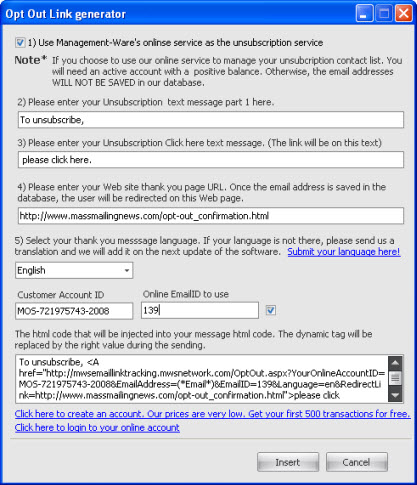
From the message editor, click on the “Insert unsubscription link” button. The “Unsubscription link generator" dialog box will be displayed.
Step 2:
Check the first box “Use the online service of Management-Ware Solutions to manage the unsubscriptions...”.
Step 3:
Please enter the first part of your unsubscription text.
Examples: - To unsubscribe,
- To stop receiving this type of messages or to cancel your subscription.
- To remove your address from our lists,
- If you do not wish to receive our newsletters and you wish to be permanently excluded from our mailing lists,
- To cancel your subscription to this newsletter,
- To unsubscribe from our mailing list,
- To leave the mailing list,
Step 4:
Please enter the second part of your unsubscription text where the unsubscription link will be inserted.
Examples: - just click here.
- please click here.
Step 5:
Please enter the link of your “Thank you” page.
Example of a “Thank you” page:
http://www.massmailingnews.com/opt-out_confirmation.html
Step 6:
Select the language of the “Thank you” page.
Choices offered: English or French (other languages will be added)
Note: You must not alter the html code that appears in the text box.
If you are not yet subscribed to the online services and you wish to join, click on the “Click here to create an account” link. Get 500 transactions for free in order to try the service.
If you have already created an account for the online services, just click on the “Click here to log into your online account” link.
To save everything, click on the “Insert” button.
To cancel all, click on the “Cancel” button.
When you are logged in your online account (https://www.mwsnetwork.com), your customer ID appears at the top right corner of the screen.
In order to learn how to trace the online email ID to use:
https://www.mwsnetwork.com/help/en/index.html?overview.htm