Spell checker and dictionary in Mass Mailing News |
  
|
Spell checker and dictionary in Mass Mailing News |
|
To access the options the lexical corrector options and the dictionary, from the “View” menu, click on “Options” and then, click on the “Spell check and Dictionary” tab.
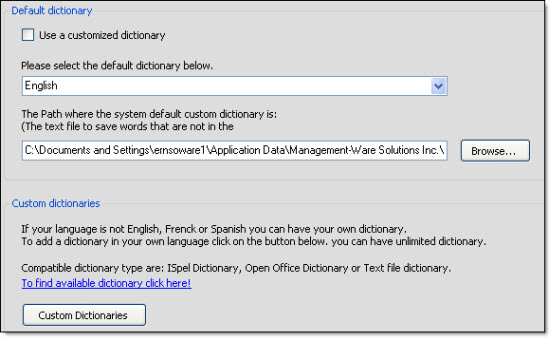
To cancel, you just need to click on the “Cancel” button. If you click on “Cancel”, your data will not be saved.
The program provides an English dictionary; if you do not want to use this language you can always add your own dictionary.
1) To add a dictionary, you need to check the “Use a customized dictionary” box.
2) Click on the “custom Dictionaries” button. The “Dictionaries list” dialog box will be displayed.
3) Click on the “Add” button to add a dictionary.
4) Select the type of dictionary from the options.
5) Give the dictionary a name.
6) Click on the “Browse” button to indicate the location of the dictionary file you want to add.
7) Click on the “Browse” button to add and to indicate the location of the alphabet file.
8) If applicable, check the “Case sensitive [By default, the box is not checked]” box.
9) In the field “Culture”, select a culture that corresponds to yours. Ex.: (French - Canada).
10) Finally, click on the “Ok” button to close the dialog box and to save the data.
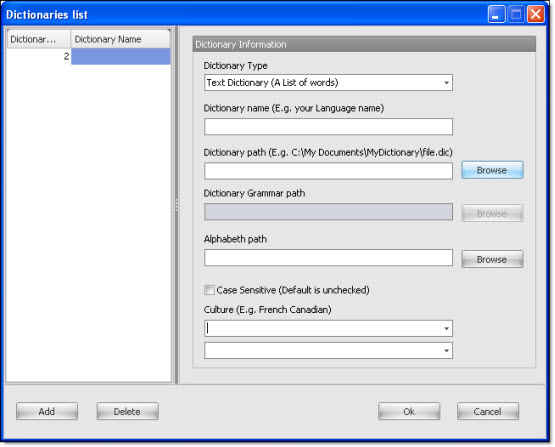
To remove a dictionary from the list, you just need to select the dictionary on your list and click on the “Delete” button. Once deleted, you will not be able to retrieve the data.
If you click on the “Default” button, the program will reset the program settings to zero. Therefore, you will lose all your data and you will need to reenter your information. After you click on the “Default” button, you will need to confirm you choice. If you click on the “Yes” button, you will not be able to retrieve your data.