View logs in Mass Mailing News |
  
|
View logs in Mass Mailing News |
|
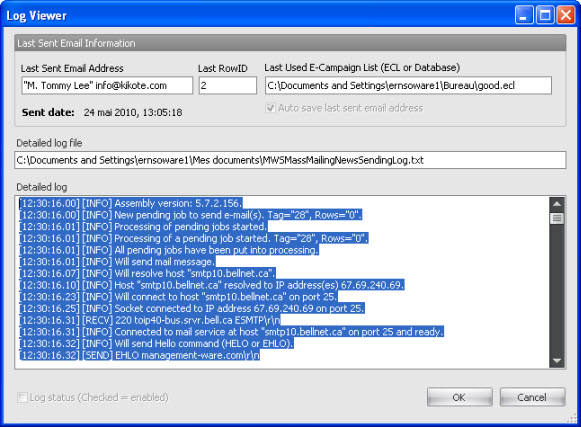
On the taskbar, go to “Send”. Then, select “View logs”. The “Log viewer” dialog box will appear automatically. This dialog box gives you information about the last sending. If you perform sending, the text box located below the “Detailed log” field will contain the details of the sending. These details can inform you about the sending of the messages. If you encounter problems during the sending, the log can be used as a clue to find a solution. During the search for solutions, an representative may ask you to send him the text file that contains the details of the sending. You can find this file in “My Documents”.
The “Last used E-campaign list (ECL or database)” field displays the path where your contact list is located.
The "Detailed log file” file displays the path where the text file that contains the sending history is located.
After you have viewed and /or made changes, click on the “OK” button in order to save your data and close the dialog box.
If you click on “Cancel” your data will not be saved.