Add attachments in Mass Mailing News |
  
|
Add attachments in Mass Mailing News |
|
Add as many attachments as you wish in Mass Mailing News! In order to attach one or many documents to your message, click on “View”, then “Attachments” or click directly on the tab “Attachments” from the main page. The “Attachments” module will automatically appear. Click on the “Add a file” button and the “Select file” dialog box will be displayed. Choose one or many documents and click on “Open” to attach the documents to your message.
First possibility: If you do not check the box right beside the attachment, under the word “File”, all of the contacts from your list will receive the attachment.
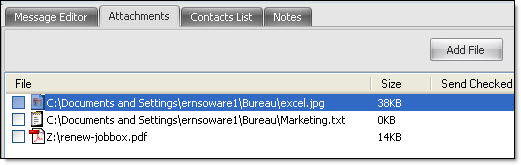
Second possibility in Mass Mailing News: If you check the box right beside the attachment, under the word “File”, and if the contacts are in particular groups, the attachment will only be sent to the contacts in these groups.
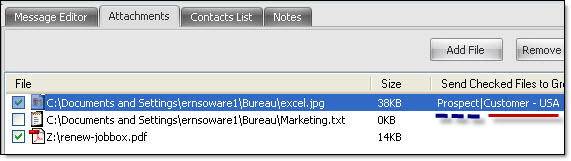
In order for you to send a particular attachment to a particular group, you need to select the attachment, and then click on the “Place file in a Group”. The “Group Selection” dialog box will be displayed. Then, check the group or groups you want. Therefore, only the contacts from these groups will receive the attachment.
Third possibility in Mass Mailing News: If you check the box right beside the attachment, under the word “File”, and if the contacts are not in groups, the attachment will then be sent only to the contacts that are not in groups.
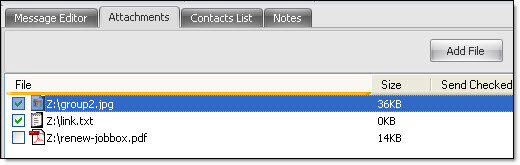
For you to send a particular attachment to a particular group, you need to select the attachment, and then click on the “Place file in a group”. The “Select Group” dialog box will then appear. Then, check the group or groups you want. Therefore, only the contacts from these groups will receive the attachment.
This module is interesting for the users that have, for example, a list of contacts and many products (ex.: Product A, Product B, Product C) and want to send a promotion only to a certain group of contacts, such as the clients that only bought Product A. Therefore, the clients who are in the contact list, and who bought Product B and C will not receive the attachment about the promotion.
To remove an attachment, just check the attachment and click on the “Remove file from the list” button. You can remove many documents at the same time in your list of attachments.
To remove many documents from the list of attachments, just keep your finger on the Control key (Ctrl) on your keyboard and select the documents you want to remove.
Finally, to remove all the documents in the “Attachments” section, just click on the “Delete all” button. When clicking on “Delete all”, all the attachments will automatically be removed.
*Note: Return to the “Message editor” tab after you have added and/or removed attachments. In order for your messages to be sent faster, we recommend that you put your images and attachments onto your online server on your website. Thereby, the message size will be much lighter and the amount of messages sent, in the same timeframe, will be much higher.
The image below shows the attachments module in Mass Mailing News. On this screenshot, we can see many attachments, but only one selected. The selected file is in blue.
Note: The add-in fully integrates with the built-in Mail merge wizard of Mass Mailing News and allows you to specify one or multiple attachments to be send out with your mailing.