Add background image in your email message |
  
|
Add background image in your email message |
|
Steps to add a background image:
1- From the taskbar, click on the “Insertion” menu, and then select “Background image”.
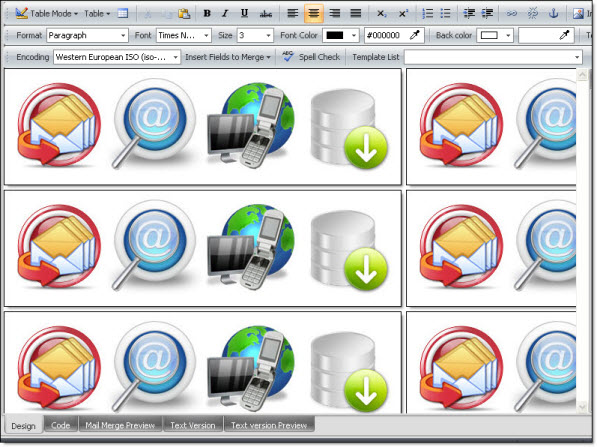
2- The “Image selection” dialog box will be displayed automatically. Select your image and click on the “Open” button. Your image will be displayed automatically in the background of the “Message editor” (see Image B: Background image).
Note: According to the size and format of the image, it could be displayed in duplicate.
Image B: Background image