Insert a horizontal line in the message |
  
|
Insert a horizontal line in the message |
|
Management Ware Mass Mailing News allows you to add a horizontal line when creating messages.
Steps to insert a horizontal line in a message:
1.You need to be on the “Message editor” tab.
2.Place your cursor in the location you want to add the horizontal line.
3.On the taskbar, go to the “Insertion” menu and then click on “Horizontal line”. The horizontal line will be inserted in the location where you have placed your cursor.
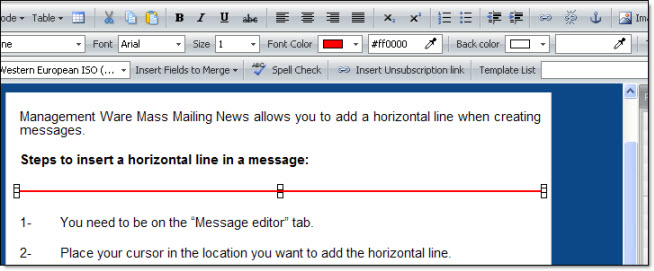
To add color to the horizontal line, you just have to select the line and click on the “Font color” field. Select a color and it will be applied to the horizontal line. You can also widen your horizontal line. To widen the line, select the line and slide towards the top or bottom of the selection.
Note: you can only insert one line at a time.
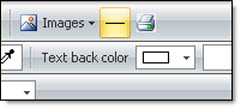
The horizontal line can be added directly from the message editor. To insert a horizontal line, click on the “Horizontal line” icon. The “Horizontal line” icon is located in between the “Image” and “Print” icons.