|
Insert a signature in the email message |
  
|
Insert a signature in the email message
|
Insert a signature in the email message |
|
You can insert as many signatures as you want in the list of signatures!
To add a signature in the list of signatures, you need to:
1) From the “Insertion” menu, click on “Signatures”.
2) Click on the “Add” button.
3) In the field “Signature name”, enter any name.
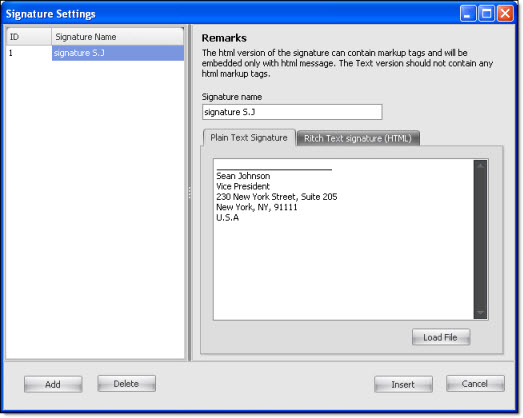
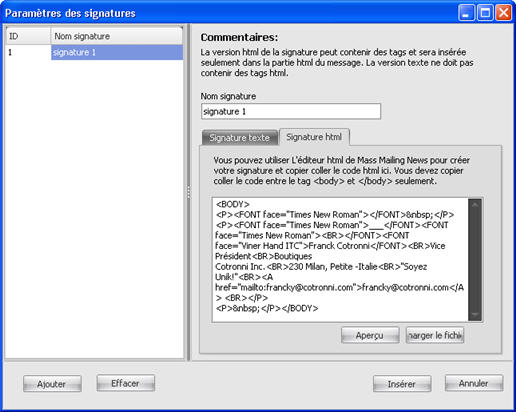
4) Enter the details of the signature in the text box. This signature will be displayed in the text version of the message. If you have a signature in Ritch text (HTML), click on the “Html signature” tab. Then, paste the HTML code of your signature in the text box. You need to copy only the HTML code that is located in between the <body> tags.
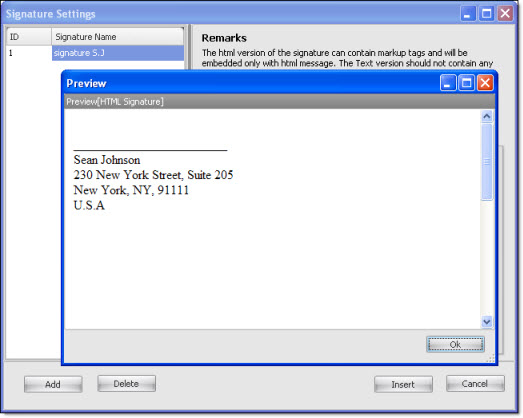
5) Click on the “Preview” button to view the signature. To close the “Preview” dialog box, click on the “Ok” button.
6) To save the signature, click on the “Insert” button.
To remove a signature from the list of signatures, you need to select the signature in your list and then click on the “Delete” button.
To cancel, just click on the “Cancel” button. If you click on “Cancel”, the dialog box will be closed and your data will not be saved.
Insert a signature in the message
1) Place your cursor in the location where you want the signature to be.
2) From the “Insertion” menu, click on “Signature”.
3) Select a signature from your list.
4) If you want to insert a signature in Ritch text (HTML), then click on the “HTML signature” tab. And if you use a text version of the message, then select the text version of the signature.
5) Click on the “Insert” button to insert the signature in the message.