Insert a hypertext link in your message |
  
|
Insert a hypertext link in your message |
|
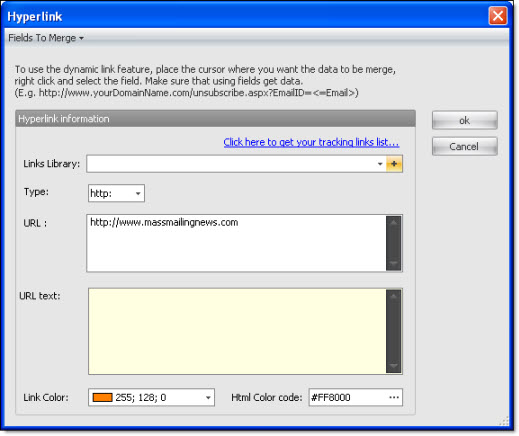
To insert a hypertext link in your message, you first need to select the word or group of words on which you want to add the hypertext link and, on the taskbar, go to the “Insertion” menu and select “Hypertext link”. The “Hypertext link” dialog box will be displayed. In the URL field, enter the complete URL address that you wish to add and click on the “Ok” button.
Before clicking on the “Ok” button, if you want to add color to the link, click on the “Link color” field and select a color. Your word (or group of words) color will change to the color you have chosen and will be underlined.
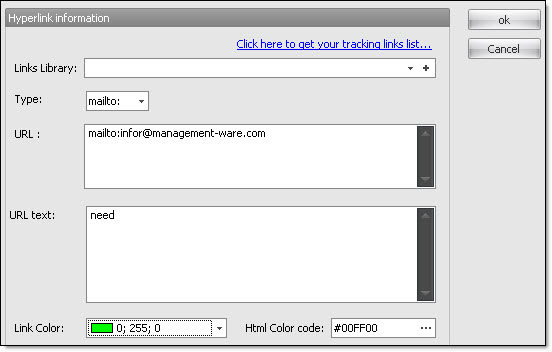
Note: If you want to add the email address onto a word or a group of words, you need to:
1- Select the word or group of words.
2- On the taskbar, go to the “Insertion” menu and select “Hypertext link”.
3- On the “Hypertext link” dialog box in the “Type” field, change the type and select “mailto”.
4- Just before mailto: manually enter the email address (ex.: infor@management-ware.com) or as a shortcut, press “Ctrl + V” to paste an address coming from somewhere else. To add color on the address of the link, click on the “Link color” field and click on the “Ok” button.