Insertion of hypertext link through the message editor |
  
|
Insertion of hypertext link through the message editor |
|
To insert a hypertext link in your message
1) First, you need to select the word or group of words on which you want to add the hypertext link.
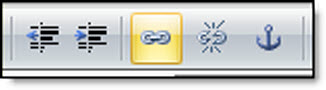
2) On the taskbar of the “Message editor”, click on the “Hypertext link” icon. The “Hypertext link” dialog box will be displayed automatically.
3) In the “Hypertext link” dialog box, in the field “type” the option “http:” must be chosen.
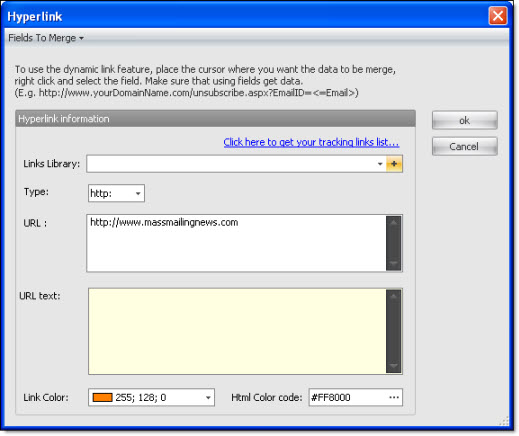
4) In the “URL” field, manually enter the link address (ex.: www.managementware.com) or, as a shortcut, press “Ctrl + V” to paste an address that would come from somewhere else. If you have a list of links in your hyperlinks list, then just click on the small arrow located at the right side of the “+” button to select an address from the list.
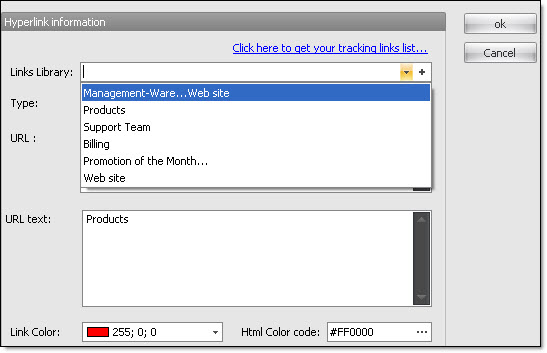
5) If you wish to add color to the link, at the bottom left of the dialog box, click on the “Link color” field. Select your color.
6) Click on the “Ok” button to apply the link on a word or a group of words.
If you do not want to add a link on a word anymore, you just have to cancel the initial instruction. To cancel, just click on the “Cancel” button and the “Hypertext link” dialog box will be closed automatically.