Insert a table in a message |
  
|
Insert a table in a message |
|
Management Ware Mass Mailing News allows you to add tables, view the tables’ properties, insert rows, insert columns and delete these rows and columns when creating your messages.
Steps for inserting a table in a message:
1- You need to be on the “Message editor” tab.
2- Place your cursor on the location where you want to insert the table.
3- On the taskbar, go to the “Insertions” menu and select “Table”.
4- The “Table properties” dialog box will be displayed. Then, enter the number of rows, columns, spacing between the cells and text margin. Finally, click on the “Ok” button to display the table in the message editor.
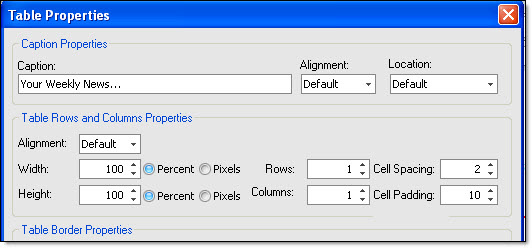
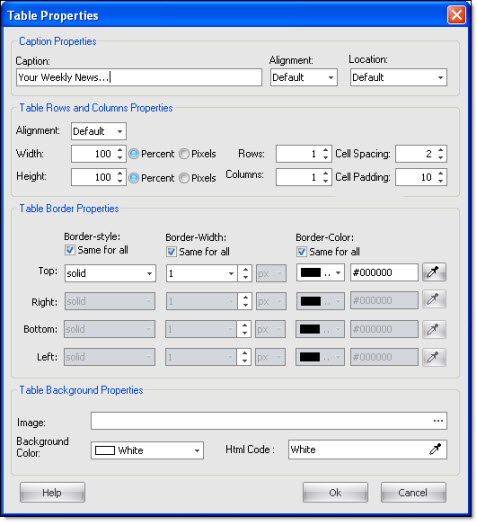
If you wish to view the table’s properties, you can do so through the “Properties menu”, located on the right hand side of the editor or select the table and click on the “Insertion” menu and select “Table”. The “Table’s properties” will be displayed.
To cancel, just click on the “Cancel” button. If you click on “Cancel”, your data will not be saved.
5- The next image presents an example of an empty table that has been added.
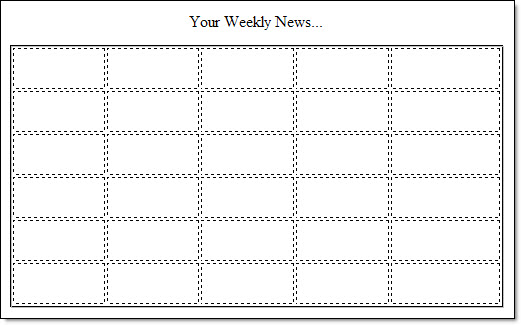
To delete a table, select the table and click on the “Delete” button on your keyboard.
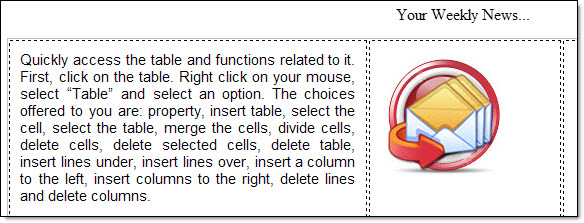
6- The next image presents texts and images added to a table located in a message. To add data (text and/or image) in a cell, place your cursor on the location where you want to add it.
Add color to your cells
First, you need to select the cells in which you want to add color. Then, right click on your mouse and select “Table color”, and select “Cell back color”. The “Colors” dialog box will be displayed. Select the desired color and click on the “Ok” button.