Insert images in your email message |
  
|
Insert images in your email message |
|
Insert as many images as you want in your messages! To insert simple images in your message, follow the 6 steps below. If, during insertion, you modify the original image (ex.: add effects or resize the image), then, you will have to save the new image, with the effects or with the new size and then, insert it.
Steps to add an image in the message:
1.Place your cursor in the location where you want the image to be.
2.From the menu, click on “Insertion” and then “Image”.
3.The “Image insertion” dialog box will be displayed automatically, then click on the “Browse” button.
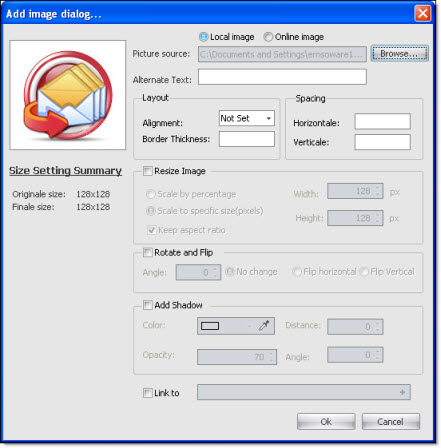
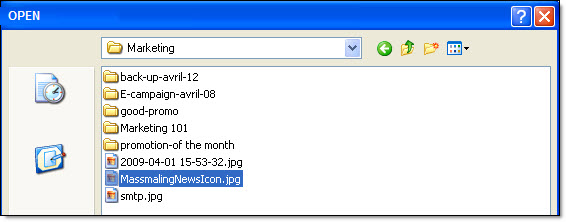
4- Select your image and then click on the “Open” button.
5- Optional – in the “Alternative text” field, you can enter anything you want such as a name (ex.: Management Ware Jobbox Recruiting) and select the location of the image. By default, the program aligns the image to the left. You can also resize, turn and add effects to the image.
If you wish to add a link to the image, check the “Link to” box and manually add a hyperlink or copy the link and paste it in the field or click on the “+” button to select a hyperlink address in the list of hyperlinks.
6- Click on the “Ok” button to close the dialog box and to display the image in the message.
To cancel, just click on the “Cancel” button. If you click on “Cancel”, the dialog box will be closed and your data will not be saved.
To remove an image, just select the image and delete as usual.
Note: For online images, select "Online image" then, in the "Picture source" field enter the complete address e.g. http://www.YourDomainName.com/images/yourimage.gif jpg, png etc.). After, click on the “Ok” button to close the dialog box and to display the image in the message.
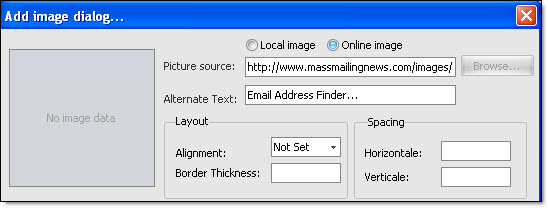
Example - online image: http://massmailingnews.com/images/MassmalingNewsIcon2.gif