Open Portable HTML message with Mass Mailing News |
  
|
Open Portable HTML message with Mass Mailing News |
|
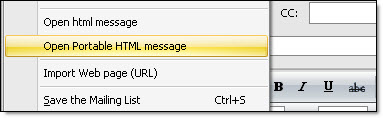
1.To open quickly a portable HTML message from the “File” menu, you only have to click on “Open portable HTML message”.
2.Choose a message and click on the “Open” button.
3.Click on the “Browse” button. You have to choose or create a folder that you are going to use to save the document.
4.Click on the “Ok” button to open the portable HTML message in the editor.
5.Once the message is opened, you'll be able to edit the message and save it.
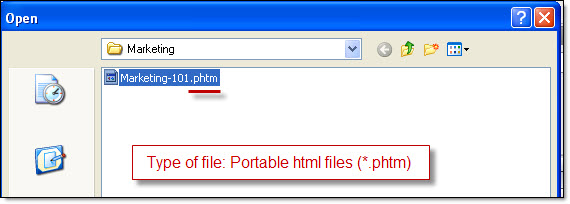
Note: In some cases, it is possible that you have to redo the message page setting. The portable HTML messages have the .phtm extension. To create a portable HTML message you have to go in the “File” menu and select “Save HTML message for another computer”. A portable HTML message contains all the elements of the message (ex: text, images and links).
Note: Warning! Portable files don’t contain the configuration information.