Steps for inserting a merging field into a message |
  
|
Steps for inserting a merging field into a message |
|
1- You need to be on the “Message editor” tab.
2- Place your cursor on the location where you want the field to be.
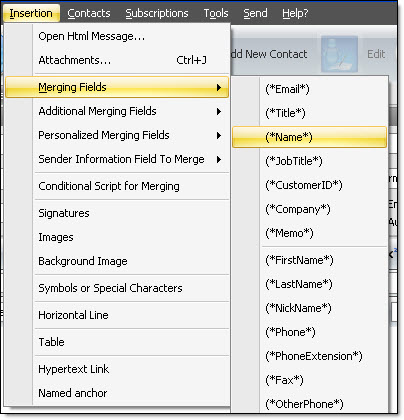
3- From the “Insertion” menu, click on “Merging fields” and select the field you want to add. For example, if you want to add the “Prefix” and “Full name” fields, you need to click on (*Title*) and (*Name*).
You can only add one field at a time. You must not alter the encoding of the fields. If you modify the encoding of a field, it is possible that it will not be displayed properly. You need to leave a space in between each field (see Image 1: Insertion: Merging fields).
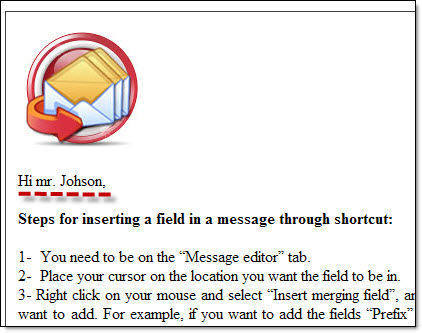
4- To see a preview of your message with merging fields, your first need to select a contact. Click on the “Contacts list” button and select a contact. After you have made the selection, return to the “Message editor” tab and click on the “Message preview” tab. This tab is located at the bottom of the “Message editor” tab (Image 2: Message with personalized fields preview).
5- To modify your message, you need to return to the message editor. To remove a field, just select it and delete as usual.
Note: The merging fields can be added after or during the creation of the message.
Image 1 : Insertion: Merging fields
Fields insertion & message preview
Image 2: Message with personalized fields preview
Note: The fields can be added after or during the creation of the message.