Send personalized email with mail merge using your custom fields |
  
|
Send personalized email with mail merge using your custom fields |
|
The program offers ten fields that you can personalize. You can enter the information you want into these fields. The fields are numbered as follow: CF1, CF2, CF3…CF10. “CF1” represents the first field and “CF2” represents the second field and so on.
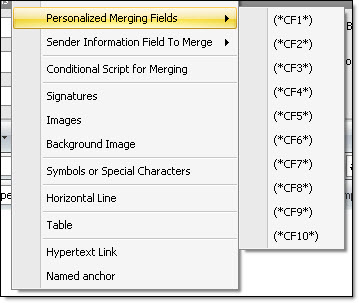
The insertion of a personalized merging field can be done from the “Insertion” menu or from a shortcut you can access by clicking on the right button of your mouse.
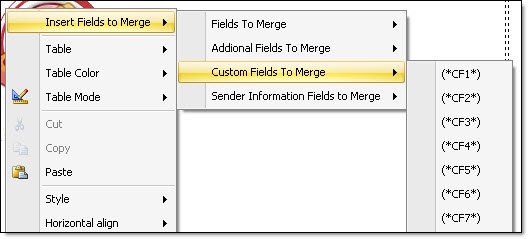
For example, if you want to insert your first personalized merging field in a message, you need to click on “Insertion” from the main menu, and then click on “Custom fields to merge” and select “(*CF1*)”. The encoding “(*CF1*)” will be displayed in your message and you should not alter it. If you click on “Message preview”, the encoding “(*CF1*)” will be replaced by the value you have entered in the CF1 field.
Note: To access the personalized fields, you need to click on “Add” and then the “Contact form” dialog box will be displayed. Then, click on the “Other information” tab. The third section of this tab shows the personalized fields.