Using third party pickup service to deliver |
  
|
Using third party pickup service to deliver |
|
We recommend you to use your Internet Service Provider's (ISP) SMTP server. You may however use any SMTP server you have access to. (Most people find it useful to use the same settings in their Email client if possible). If possible, copy your settings from your existing E-mail client program (such as Outlook).
1.If you wish to use the service of a third party to deliver the messages, go to the “Send” menu and click “Sending Method”.
2.Select “Use third pickup service to deliver (E.g. IIS SMTP server PickUp)”.
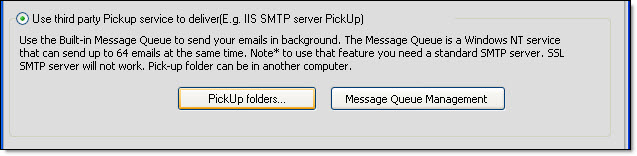
3.Click on the “Pickup folders” button. The “File Settings” dialog box will be displayed.
4.Click on the “Add” button
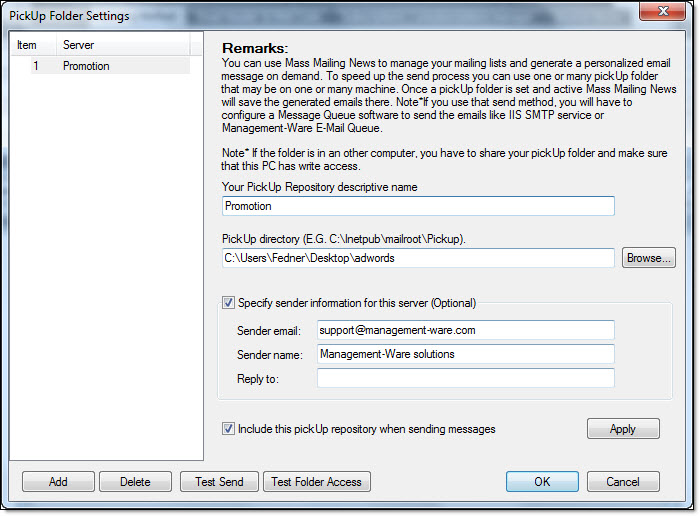
5.“Pickup repository Descriptive Name” field, add the descriptive name.
6.Click on the “Browse…” button to select or create the folder where the message will be saved.
7.Finally, click on the “Ok” button to close the dialog box and to save the data.
To cancel, you just need to click on the “Cancel” button. If you click on “Cancel”, your data will not be saved.
Your message is not delivered: 1) Double check the settings & the email addresses. 2) Verify that you don't have a firewall that blocks outgoing messages. 3) Be patient. Usually the message delivery is instant, but we've seen where the ISP has delayed the delivery of a message for hours. 4) Also check to make sure your computer has not been flagged as a SPAMMER. Check if your mail server has been blacklisted. How? Make some searches online to find companies that offer this service (search with keyword like this “mail server has been blacklisted”. |
*The list of the most important SMTP error codes...