Mass Mailing News configuration - Sending methods and SMTP servers |
  
|
Mass Mailing News configuration - Sending methods and SMTP servers |
|
First thing to do before anything, you MUST configure the program. Management-Ware Mass Mailing News can send e-mails using 3 different methods:
1)Send via SMTP servers (Recommended)
2)Use third party pick up service to deliver
In Mass Mailing News, we recommend you to use your Internet Service Provider's (ISP) SMTP server. You may however use any SMTP server you have access to. (Most people find it useful to use the same settings in their Email client if possible).
Each provider has different parameters for SMTP configuration, so Management-Ware Mass Mailing News must be configured differently too, depending on the provider you use. We recommend you to use known smtp server to send out your emails for many reasons.
The choice depends, first of all, on the availability of a good SMTP server. If your ISP SMTP server is able to handle many messages in fast sequence, or even sending more messages simultaneously, using an SMTP server is faster and more reliable, since your SMTP server is “closer” to your computer than the single recipient’s e-mail server.
However, some providers, to prevent their users from using the server for spamming purposes, impose restrictions on the number of messages that can be sent within a specific time span and the number of messages that can be sent simultaneously (for instance, an SMTP server could accept no more than a message every 5 seconds and not allow sending more than 3 messages at a time). All messages that exceed these restrictions will be rejected with an error. This does not mean that the server or the software aren’t working properly, but rather, that it will be necessary to set in a different way the sending timing option in the Sending Options.
Sending via SMTP Servers
1.To start, go to the “Send” menu then click “Sending Method”. The e-mail program offers this option (Sending via SMPT servers) by default.

2.Click on the “SMTP Servers…” button. The “SMTP Servers” dialog box will be displayed.
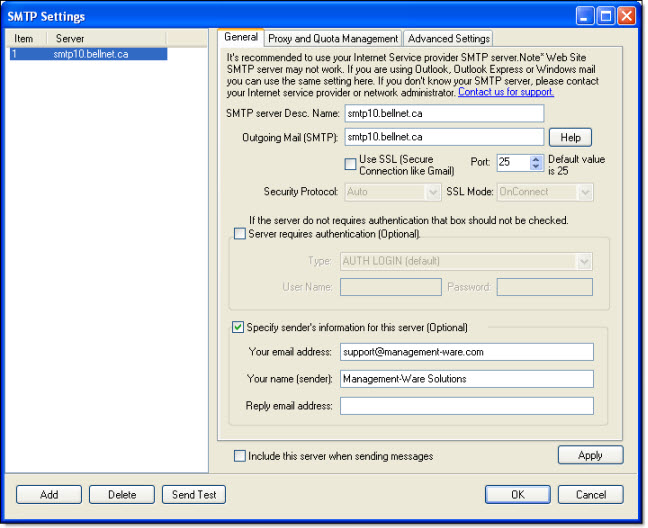
3.Click on the “Add” button.
4.In the field “SMTP Server Desc. Name”, enter a name (e.g.: Mass Mail Bell Verizon).
5.Port value: 25
6.In the field “Outgoing Mail server Address (SMTP)”, enter the SMTP server address (E.g.: smtp10.bellnet.ca). If you don't know the address of your server, contact your Internet service provider or your hosting company or your technical support department. Management-Ware Solutions offers a list of providers and server addresses. To consult the list, see below “Network provider - SMTP server list”.
Note: In case a user authentication is required, select 'Use SSL (Secure connection like Gmail) '- see the next section (SMTP-Secure Configuration)
7.Check “Specify sender’s information for this server (optional)” box. Enter the sender's information.
8.Enter any email address in the fields “Your email address ” and “Reply email address ” . Enter any name in the field “ Your name (sender)” – this is optional.
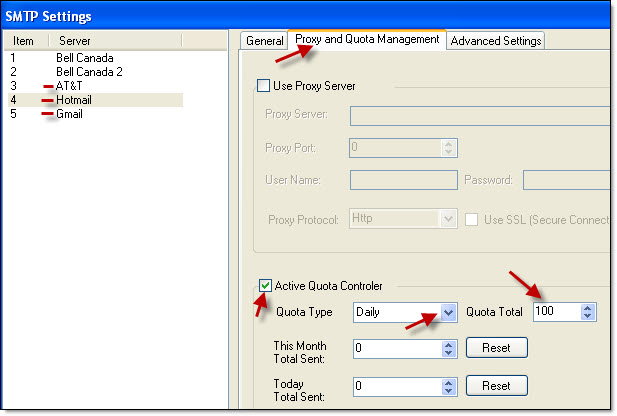
9.If your Internet provider limits your outgoing messages, you can then activate the quota controller. You must respect the limitations of your SMTP server address. For example - if your daily quota is 100 emails then, enter this value in the 'Proxy and Quota Management' table. To know your limit/ quota, please contact your ISP or your hosting company or your technical support department.
1.Click ''Proxy and Quota Management'' table.
2.Enable the controller by clicking the check box 'Active Quota Controller'.
3.Select the quota type: daily or monthly.
4.Enter the quota - value: 100.
5.Return to the General tab to continue.
10.Click on the “Ok” button to close the dialog box and to save the data.
To remove a server address, you just need to select the address on your list and click on the “Delete” button.
To cancel, just click on the “Cancel” button. If you click on “Cancel”, your data will not be saved.
Note: You can configure multiple SMTP server addresses and use them simultaneous.
Your message is not delivered: 1) Double check the settings & the email addresses. 2) Verify that you don't have a firewall that blocks outgoing messages. 3) Be patient. Usually the message delivery is instant, but we've seen where the ISP has delayed the delivery of a message for hours. 4) Also check to make sure your computer has not been flagged as a SPAMMER. Check if your mail server has been blacklisted. How? Make some searches online to find companies that offer this service (search with keyword like this “mail server has been blacklisted”. |
*The list of the most important SMTP error codes...