Add contacts to a group in Mass Mailing News |
  
|
Add contacts to a group in Mass Mailing News |
|
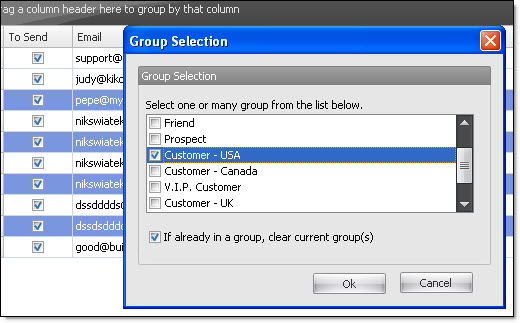
How do I add contacts to groups in Mass Mailing News? From the “Tools” menu, select “Add contacts to a group” and make a choice:
- Add selected contacts to a group
- Add all contacts to a group
- Add / edit a group

If you select “Add selected contacts to a group”, the “Group selector” dialog box will be displayed automatically. Check your selections and click on the “Ok” button to save your data.
Add or edit a group of the list
If you wish to add or edit a group of the list, from the “Tools” menu, select “Add contacts to a group” and select “Add/edit group”. The “Contact groups” dialog box will be displayed automatically. Click on the “Add” button and enter your group name in the field “Group name”. You can also add a brief description for each group, this is optional. Repeat the process for each group name. After you have entered you group names, click on the “Ok” button to save your data.