Column chooser in Mass Mailing News |
  
|
Column chooser in Mass Mailing News |
|
To display the “Column chooser” dialog box, click on the “Contacts list” tab, then click on the “Tools” menu and select “Column chooser”. The selector will be displayed.
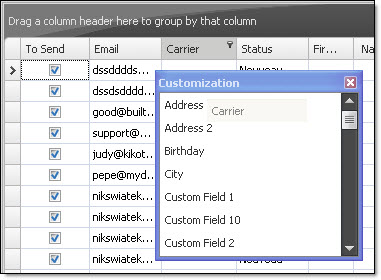
Then, if you do not want to see some of the titles, you just need to click on a title and drag it in the “Customization” dialog box. Thus, when you will export your information, the program will only export the fields that are displayed in the program’s interface. The screenshot above shows that the user is dragging the title “Carrier” in the “Customization” dialog box.
If you have data in some fields, of the interface, that are not displayed in front of you, they will be saved also but not exported.
If there are titles in some fields that are not displayed in the interface, and that you wish to see, click on the “Tools” menu and select “Column chooser”. The selector will be displayed. Then, among the proposed fields in the “Customization” dialog box, just click and drag the titles of the desired fields on the title bar of the program.
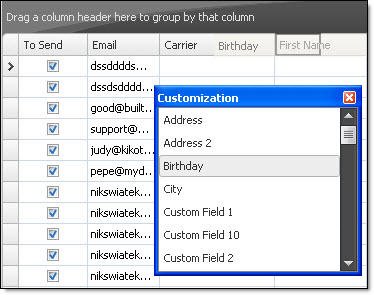
The following screenshot shows the “Customization” dialog box and the user dragging the “Birthday” title onto the title bar that contains the titles.