Delete selected contact in the mass mailer |
  
|
Delete selected contact in the mass mailer |
|
To delete a contact from your list, first select it, then from the taskbar, go to the “Contacts” menu, and select “Delete selected”. Confirm your choice and it will be deleted automatically. If you click on the “Yes” button, in order to accept the deletion, you will not be able to retrieve the data stored in the Contact form.
You can delete many email addresses at the same time, in your contact list. How do you select and delete many email addresses at the same time? To select and delete many email addresses at the same time, press the control key (Ctrl) on your keyboard and without releasing the key select the email addresses you want to delete. Then, from the taskbar, go to the “Contacts” menu and select “Delete the selections”. Confirm your choice and the deletion will be done automatically. If you click on the “Yes” button, in order to accept the deletion, you will not be able to retrieve the data stored in your contact forms.
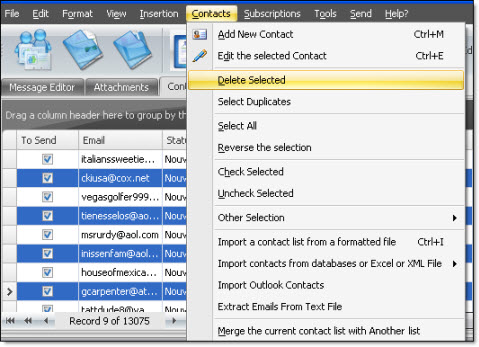
To select a group of contacts, select the first contact of the group and at the same time, press the Shift key on your keyboard and, without releasing the key, select the last contact of the group. Then, from the taskbar, go to the “Contacts” menu and select “Delete selected”. Confirm your choice and it will be deleted automatically. If you click on the “Yes” button, in order to accept deletion, you will not be able to retrieve the data stored in the contact forms.
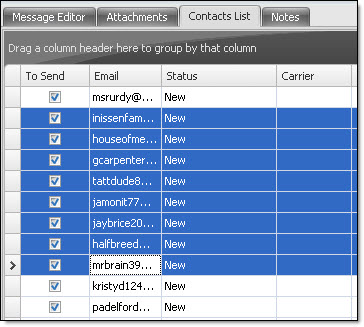
Note: If you are in the “Message editor” tab, you will see that many items are not activated in the “Contacts” menu. In order to activate these items, you need to be in the “Contacts list” tab.