Email Bounce back messages |
  
|
Email Bounce back messages |
|
Explanation of Bounceback or Email Error Messages. In the Internet's standard e-mail protocol SMTP, a bounce message, also called a Non-Delivery Report/Receipt (NDR), a (failed) Delivery Status Notification (DSN) message, a Non-Delivery Notification (NDN) or simply a bounce, is an automated electronic mail message from a mail system informing the sender of another message about a delivery problem.
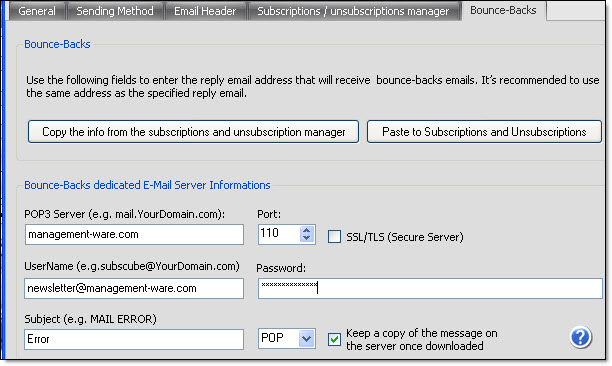
First, make sure your have the right information concerning your server. To manage your returned emails (bounce-backs), fill out all necessary fields and save.
If you already have properly filled the fields on the “Subscriptions and unsubscriptions manager” tab, then just click on the “Copy the info from the subscriptions and unsubscriptions manager” button. Therefore, you will not have to reenter the information.
1.To get the bounce backs tab, go to “View” menu and select “Options”. After that, click “Bounce-backs” tab.
2.In the “POP3” Server field, you need to enter the server’s address for incoming messages. E.g.: management-ware.com or mail.management-ware.com.
3.In the “Username” field you need to enter an email address which will receive the returned messages. In the “Password” field you need to enter the corresponding password of this email address. E.g.: newsletter@management-ware.com.
4.In the Port field, indicate your port.
5.If you use a secure server, check the “SSL/TLS (secured server)” box. If you server is not a secure server, don't check this box.
6.If you wish to keep the emails on your server, check the “Keep a copy of the messages on the server once downloaded” box.
7.Finally, click on the “Ok” button to close the dialog box and to save the data.
To copy the information from the “Subscriptions and unsubscriptions manager” tab, click on the “Copy the info from the subscriptions and unsubscriptions manager” button. This option will prevent you from manually reentering the information that has already been entered.
To paste the information in the returned emails section, click on the “Paste the info from the subscriptions and unsubscription manager” button. This option will prevent you from manually reentering the information that has already been entered.
To cancel, you just need to click on the “Cancel” button. If you click on “Cancel”, your data will not be saved.
If you click on the “Default” button, the program will reset the program settings to zero. Therefore, you will lose all your data and you will need to reenter your information. After you click on the “Default” button, you will need to confirm you choice. If you click on the “Yes” button, you will not be able to retrieve your data.