Email Message preview tab |
  
|
Email Message preview tab |
|
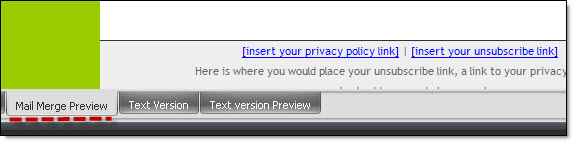
Click on the “Message preview” tab, from the taskbar.
Steps to preview the message:
1) Click on the “Contacts list” button
2) Select at least one contact in your contact list. If your contact list is empty, add one by clicking directly on the “Add new contact” button.
3) From the “Message editor” tab, click on the “Mail merge preview” button
4) To modify your message, click on the “Design” button
Note: You cannot edit a message in the “Preview” mode. If, by any reason, your message isn’t displayed in the first attempt, click on the “Design” tab and then on the “Mail merge preview” tab.