How to use the Mass Mailing News filter? |
  
|
How to use the Mass Mailing News filter? |
|
1) Click on the “Contacts list” tab.
2) You should have information in your contact list.
3) Click directly on any field that contains a title. Then, click on “Tools” and select “Filter Editor”. The filter will be displayed.
Note: At this point, after clicking directly on any field that contains a title, you can also click on the right side of your mouse and select “Filter Editor”. The filter will also be displayed.
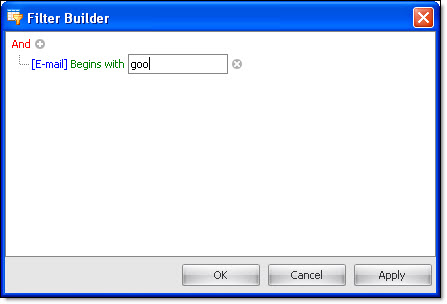
4) After the filter editor is displayed, select your condition and enter your search data in the appropriate field. In the image shown above, we show a search example. We ask the program to find and to group all the email addresses that start with “goo”. The image below shows the results found. The software found 2 email addresses that start with “goo”. When the filtering process is done, you can do what you want with the list.
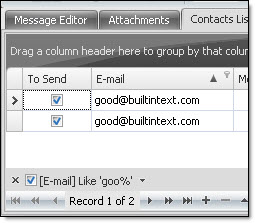
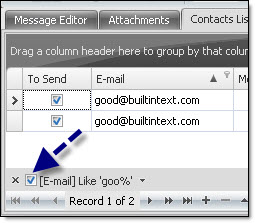
After this process has finished, you will also be able to notice that the program shows only the results from the last filtering process. Do not worry for your other information, they are still there. To display, just click on the “Email” small box located at the bottom of your search. See the image below.