Create and insert a degraded image in the message background |
  
|
Create and insert a degraded image in the message background |
|
The program allows you to create and insert a degraded image in the background of the message. To create and insert a degraded image, you need to click on the “Image” icon and select “Create and insert fade image”. The “Management-Ware Gradient Maker” dialog box will be displayed. Create your degraded image from the selection. Once created, you will be able to insert your degraded image as a background in your messages. In general, the degraded image gives a professional look to the message.
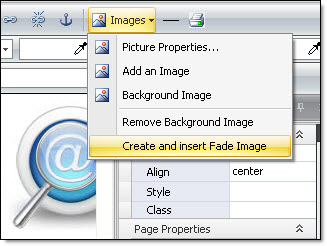
To remove a background image, click on the “Image” icon and select “Remove background image”.