Email marketing tracking and online services |
  
|
Email marketing tracking and online services |
|
The “Email marketing tracking” service from Management-Ware has been specifically designed for companies who want to track online promotions and who want a precise, quick and effective way of managing their email correspondence with their customers.
The control of the marketing information is the cornerstone of any strategic decision. For the management and automatic email tracking, we recommend you adhere to the “Email tracking and other online services” services from Management-Ware Solutions.
To access the options related to the “Email tracking and other online services” services, from the “View” menu, click on “Options” and then, click on the “Email tracking and other online services” tab.
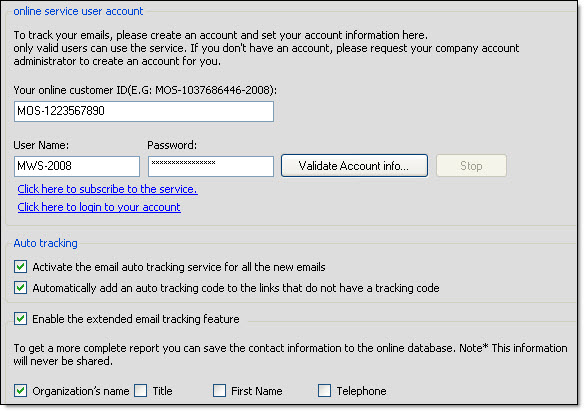
In the first field, enter “Your online customer ID”. You can enter any account ID. If you do not have an account with Management-Ware Solutions, then click on the “Click here to subscribe to the service” link. If you do not subscribe to the online service, you will not be able to track your sent messages. After you have entered you account number, enter you username and your password. Enter the same username and password that you use online. Then, click on the “Validate account info” button. If you receive an error message, then make sure to enter the appropriate information in the appropriate fields and then click again on the “Validation account info” button.
If you wish to track all the new messages that you create, check on the “Activate the email auto tracking service for all the new emails” box.
If you want the program to add automatic tracking codes to the hyperlinks that do not have tracking codes, then check the “Automatically add an auto tracking code to the links that do not have a tracking code” box.
If you wish to save more information in the online database, you have to check on the “Activate the complete email tracking feature” box and check the desired fields. For the moment, you can only save the information stored on the following fields: company’s name, job title, first name, last name, telephone, telephone extension, full name and account number.
After you have checked your options, click on the “Ok” button to close the dialog box and save the data.
If you click on the “Default” button, the program will reset the program settings to zero. Therefore, you will lose all your data and you will need to reenter your information. After you click on the “Default” button, you will need to confirm you choice. If you click on the “Yes” button, you will not be able to retrieve your data.
To cancel, you just need to click on the “Cancel” button. If you click on “Cancel”, your data will not be saved.