Get subscriptions from emails |
  
|
Get subscriptions from emails |
|
From the taskbar, go to the “Subscriptions” menu and select “Subscriptions from email”. The “MWS Email Reception” dialog box will be displayed automatically. To receive the subscriptions, you need to enter the right information concerning your server’s address. If you have already entered the right information, you just need to click on the “Get the emails” button.
Once the emails displayed, you just have to click on the “Ok” button to transfer the contacts that are checked in your contact list.
You can, at all time, stop the email importation or to cancel the import request. To cancel, you just need to click on the “Cancel” button. If you click on “Cancel”, your data will not be saved and the “MWS Email Reception” dialog box will be closed.
To know how to set the “Subscriptions and unsubscriptions manager” and “Bounce-backs” modules, go to the “Options” section.
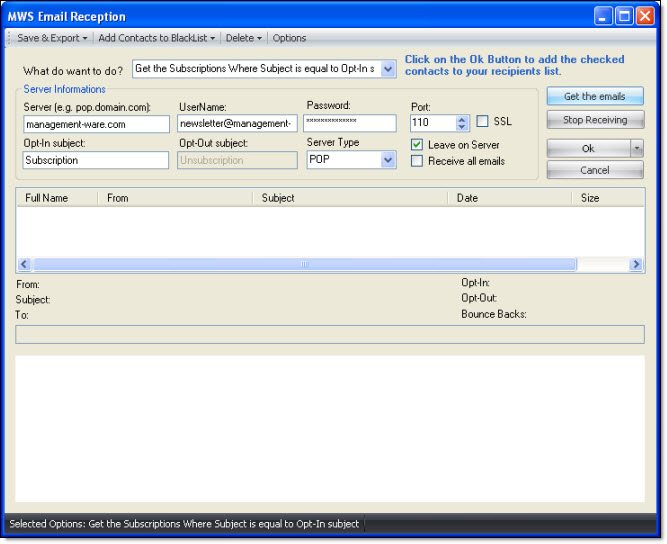
From the “MWS Email Reception” dialog box, you can enter and export contacts, add contacts to the blacklist, delete messages on the server, display the options, empty a contact list and view the “Help” menu.