Create a new email message from a template |
  
|
Create a new email message from a template |
|
Create html message from a template with our bulk mail sender software. Absolutely no technical expertise required. Whether you're a rookie just starting out, or a seasoned email marketing pro, Mass mailing News provides all of the tools you'll need.
Create a new email from an email template
The Mass mailing News software has different graphic email templates.
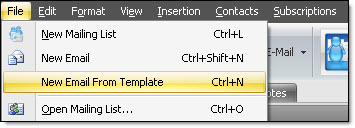
1.From the “File” menu, select “New email from template”. The “Email template list” dialog box will be displayed. To view graphic templates, click on each model (E.g.: Template 01).
2.After viewing the template, choose one and click “Ok” button.
"Email template list" dialog box:
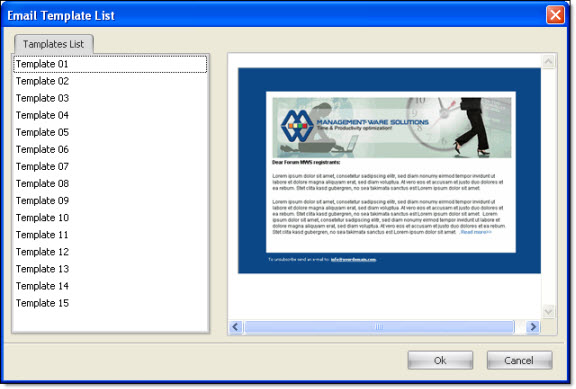
To close the “Email template list” dialog box and/or cancel a task, you only have to click on the “Cancel” button.
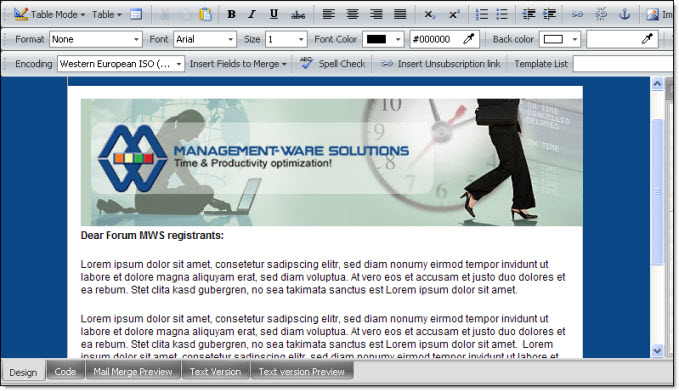
3.Now, add the elements of your newsletter. Add your logo, images, texts, merging fields, colors, links, signature, unsubscribe link, etc and click on the “Message preview” tab, to see a preview of your message. If you are satisfied with your creation than save it and send a copy to your inbox.
Note:
-If you copy / paste text into the editor, it’s recommended that it comes from a text file (Note Pad). Texts that come from Microsoft Word contain tags that can deform the font or the text characters.
-To insert an image into your message, go to “Insertion” menu. When you creating a newsletter, it’s better to put the images on your server online and insert these images in the message. The size of the message will be much lighter. When the images are online, the sending process goes much faster.
-You cannot edit a message in the “Preview” mode.
4.Add at least one contact in your list, click on the “Add New Contact” button from the taskbar or click on the “Contacts” menu and then select “Add new contact”.
5.On the contact form, enter your email address in the first field and click "ok" button to save and close the dialog box.
6.Add a topic (e.g. New Premium SEO Services) in the subject field.
Subject header lines...do they matter?
Yes, they really do, nowadays email is the chosen method of communication for most people. Every copywriter and journalist knows the importance of a powerful headline. The same applies for email subject lines, because as much as 40% of a recipient's decision to open an email is based on the subject as well as the sender.
7.Save your message. From the “File” menu, select “Save the mailing list As...”. The “Save the mailing list” dialog box will be displayed. Give a name to your mailing list (Ex: Marketing_E_List) and click on the “Save” button.
8.From the taskbar, click on the “Send” button in order to send the message to yourself.
9.You have to look up on the “Contacts List” tab under the Status column for the sending progress. When an email is sent correctly you will see the message "Send Completed With Success". If you don’t receive this message, it means that your message was not delivered, and you should review the configuration. Once the email is sent, Mass Mailing News has no control over the delivery time.
10.Give the server a few minutes to deliver the message.
11.Once you have received the message, check it and see if there are corrections to do. Some Web-mails does not support certain HTML tags consequently you will not be able to fix them. Once you are done with your test, import your contacts and send your message to your prospects!
Note: Your message is not delivered:
1.Double check the settings & the email addresses
2.Verify that you don’t have a firewall or antivirus like Norton or McAfee that are blocking your outgoing messages
3.If your Internet service provider or your hosting company limits your outgoing messages, you can than activate the quota controller (see the SMTP settings dialog box). A few providers set a "per day" or "per month" limit in order to control the traffic on their servers. If you have any doubts on the amount of messages you can send daily, contact your Internet service provider or your hosting company. If you are sending messages and during that process you realize that you have reached the provider’s quota, the program will send the messages, but they will NOT be delivered. If you have more than one SMTP address, you need to set them in the program. During the sending, the software will do the switch between SMTP server addresses.
Be patient. Usually the message delivery is instant, but we've seen where the ISP has delayed the delivery of a message for hours.
Note: To preview the email message, click on the “Message editor” tab. Then, click on the “Mail Merge preview” button. This button is located at the bottom of the screen on the left.